Do the download before the dead zone
An address in your notes is useful. A map you can still navigate when reception disappears is more useful. Apple Maps can save an area on your iPhone for offline directions. The feature has existed since iOS 17; this is a practical reminder, not a new launch.
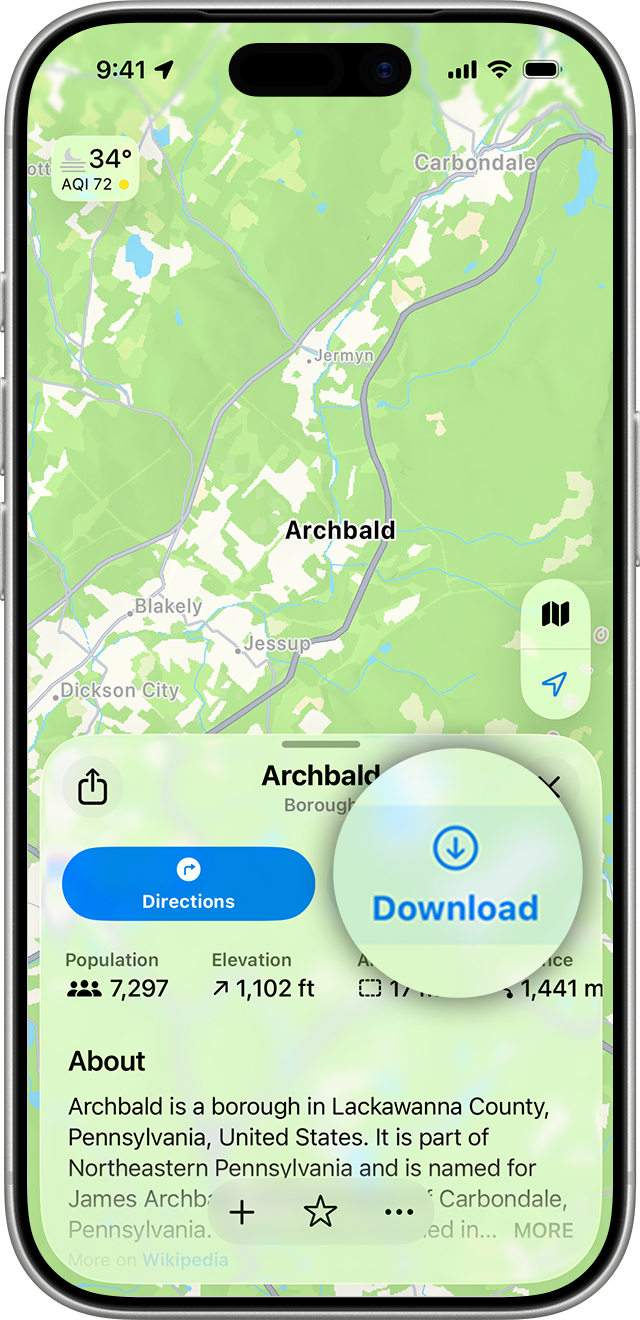
Search for your destination in Maps. Open its place card and choose Download, or use More then Download Map. Adjust the selected area before confirming. Availability varies by region.
Think about the journey, not only the destination
Our suggested check: include the roads between the places you expect to visit, not just the hotel block. A compact download saves storage, but an aggressively small rectangle may leave the interesting part of your trip outside it.
Wait for the download to finish. Then open your picture or initials in Maps and choose Offline Maps to inspect the saved area. Apple lets you resize downloads later. You can also manage automatic updates and storage cleanup there.
Make it part of the packing list
Before leaving, check your destination and the places you might stop along the way. Ask a travel companion to do their own check too: the useful habit is preparing before a connection becomes unreliable.
The screenshots show Apple’s iOS 26 interface. Button placement can differ with software versions. The important distinction is unchanged: saving a place and downloading a surrounding map are different preparation steps.
Source published 2025-12-15. Coverage is based on the maker’s announcement and demonstration.